Working with Category
A Category is a logical grouping used to organize Custom Fields for display on pages such as Device Details. Categories help improve usability by grouping related fields together. You can manage Categories by adding new ones, editing existing ones, or removing those no longer needed.
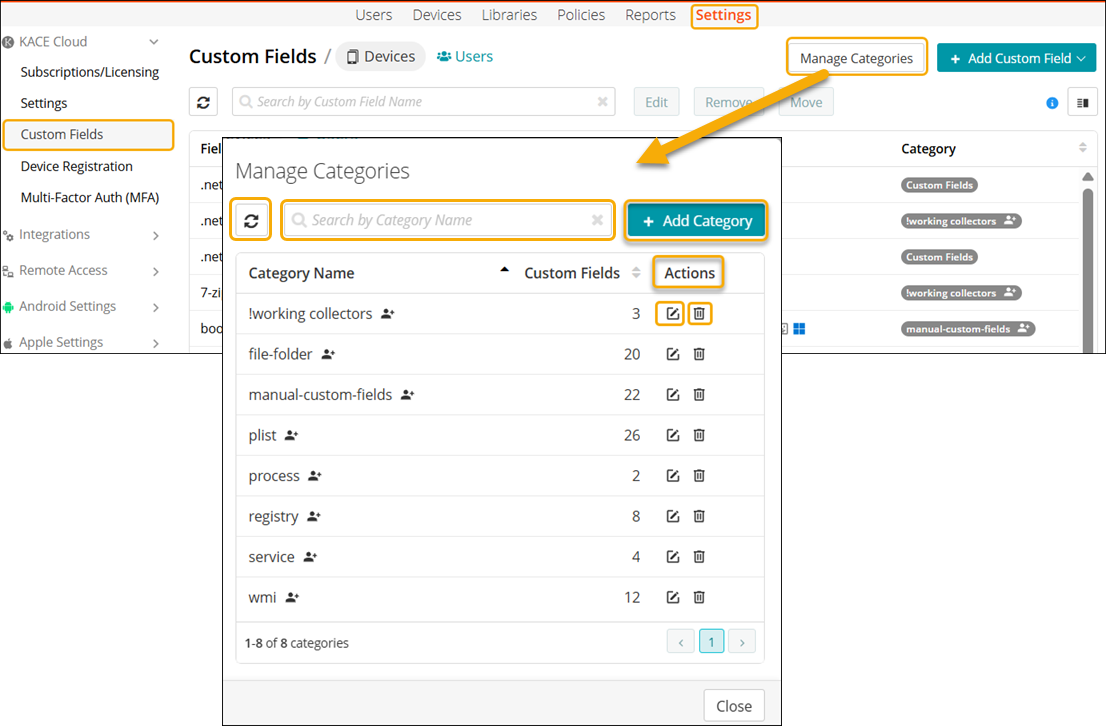
To access Manage Categories, go to Settings in top navigation. In left navigation, select KACE Cloud > Custom Fields > Devices > Manage Categories to open the Manage Categories dialog. On the Manage Categories dialog, you can:
- Add a Category
- Edit a Category
- Remove a Category
- Search for a Category
- Refresh the Category list
Add a Category
To add a category:
- Go to Settings in top navigation.
- In left navigation, select KACE Cloud > Custom Fields > Devices >Manage Categories to open the Manage Categories dialog.
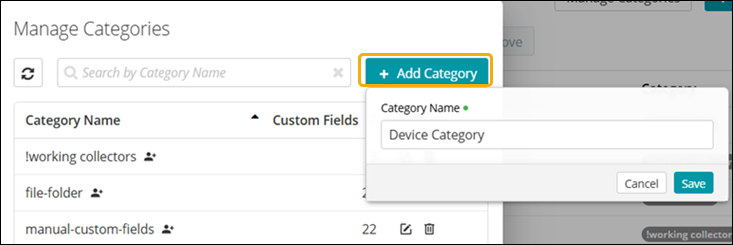
- Click Add Category.
- Enter a Category name and save it.
The Category is saved and appears in the drop-down list when you are adding a Category for a Custom Field.
Edit a Category
To edit a category:
- Go to Settings in top navigation.
- In left navigation, select KACE Cloud > Custom Fields > Devices > Manage Categories to open the Manage Categories dialog.
- Select a Category and click the edit icon to modify its name.
- Click Confirm to proceed with the action.
Remove a Category
To remove a category,
- Go to Settings in top navigation.
- In left navigation, select KACE Cloud > Custom Fields > Devices > Manage Categories to open the Manage Categories dialog.
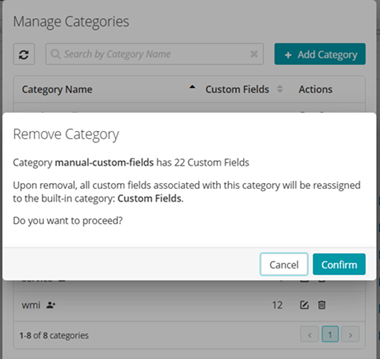
- Identify a Category to be removed and click the Delete icon to open the Remove Category dialog.

NOTE: Deleting a Category does not remove the fields associated with the Category. All the Custom Fields associated with the Category will be reassigned to the built-in Category called Custom Fields.
- Click Confirm to proceed with the action.